---
title: BLAZE Sites | Quick Start Guide
description: In this article, we'll go over what to do next after getting access to your BLAZE Site.
---
[Skip to content](https://help.blaze.me/can/home/blaze-sites-quick-start-guide#main-content)
[![BLAZE-Logo-Blue.svg\]](https://help.blaze.me/hubfs/BLAZE-Logo-Blue.svg)](https://help.blaze.me/can/home?hsLang=en)
- [BLAZE CAN Knowledge Base](https://help.blaze.me/can/home)
Open main navigation
Close main navigation
- [BLAZE CAN Knowledge Base](https://help.blaze.me/can/home)
Welcome to the Blaze Canada Knowledge Base! Find helpful reference by searching here...
- There are no suggestions because the search field is empty.
1. [BLAZE CAN Knowledge Base](https://help.blaze.me/can/home?hsLang=en)
2. [BLAZE Sites](https://help.blaze.me/can/home/blaze-sites?hsLang=en)
3. [General](https://help.blaze.me/can/home/blaze-sites?hsLang=en#general)
# BLAZE Sites | Quick Start Guide
## In this article, we'll go over what to do next after getting access to your BLAZE Site.
**WELCOME to BLAZE Sites!**
**Get familiar with the BLAZE Sites Editor and its 4 core components before you begin:**
- Top Bar
- Side Panel (Layers)
- Design Panel
- Canvas
**Learn about the core components in detail: [BLAZE Sites | Editor Tour (4 Videos)](https://support.blaze.me/hc/en-us/articles/editor-tour?hsLang=en)**
🚨**DO NOT DELETE STORE LOCATOR WIDGET THIS WILL BREAK YOUR SITE.** 🚨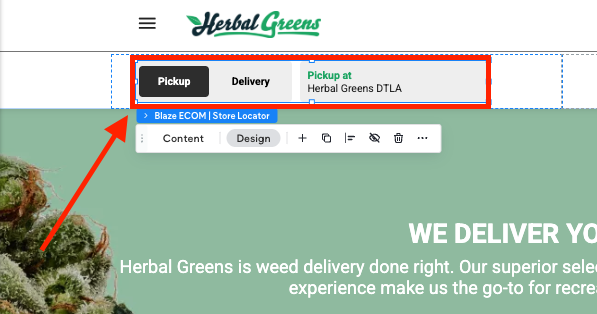
### 📝 Update Business Information
1. **Log in** to your account.
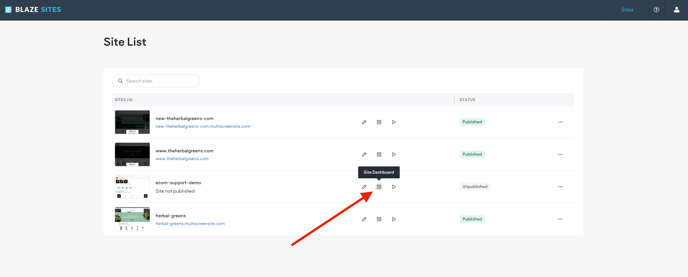
2. On the **Site Dashboard**, find the site you want to edit.
3. Click the **pencil icon ✏️** to open the **BLAZE Sites Editor**.
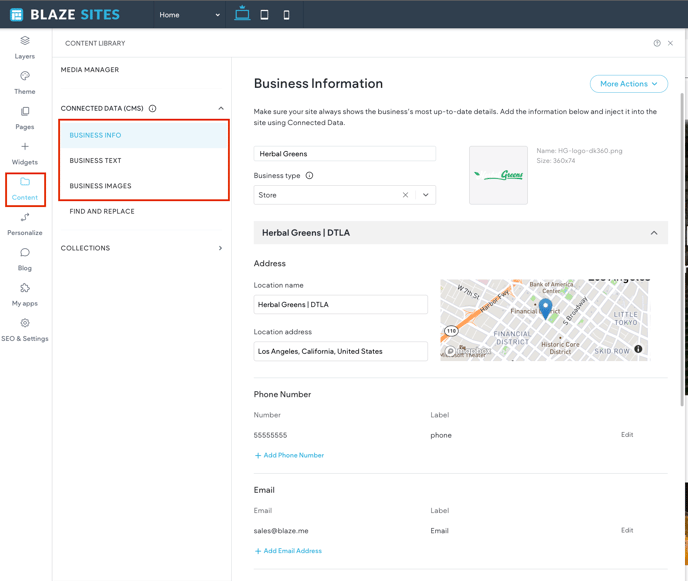
4. In the editor, go to the **Content** tab.
5. Under the **Content** tab, update the following sections:
- **Business Info** (e.g., name, address, phone)
- **Business Text** (e.g., tagline, about section)
- **Business Images** (e.g., logo, header image)
****
🤖 **PRO TIP:** Use ✨AI to help generate engaging Business Text!
Enable **Local Business Schema** to improve your site’s visibility in rich search results.
Click **[here](https://support.blaze.me/hc/en-us/articles/blaze-sites-content?hsLang=en)** to learn more about the Content tab and your business information.
### 🔍 Set Up Page SEO
1. **Go to your Site Dashboard.**
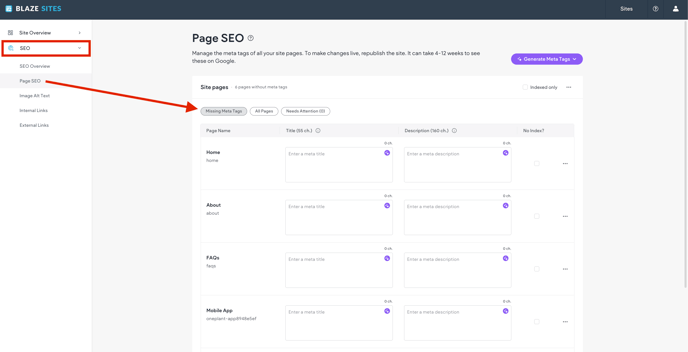
2. Navigate to **SEO \> Page SEO**.
3. For each page, you can manually enter your SEO meta title and description.
4. Or, save time by using AI! Just click **"Generate Meta Tags"** or tap the ✨ sparkle icon next to each field to automatically generate optimized content.
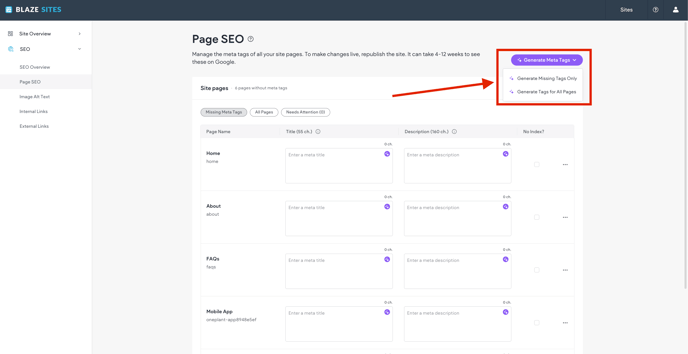
**NOTE: If using AI generated content AI Content Assistant will popup. Please fill out all fields with relevant information for the best results**.
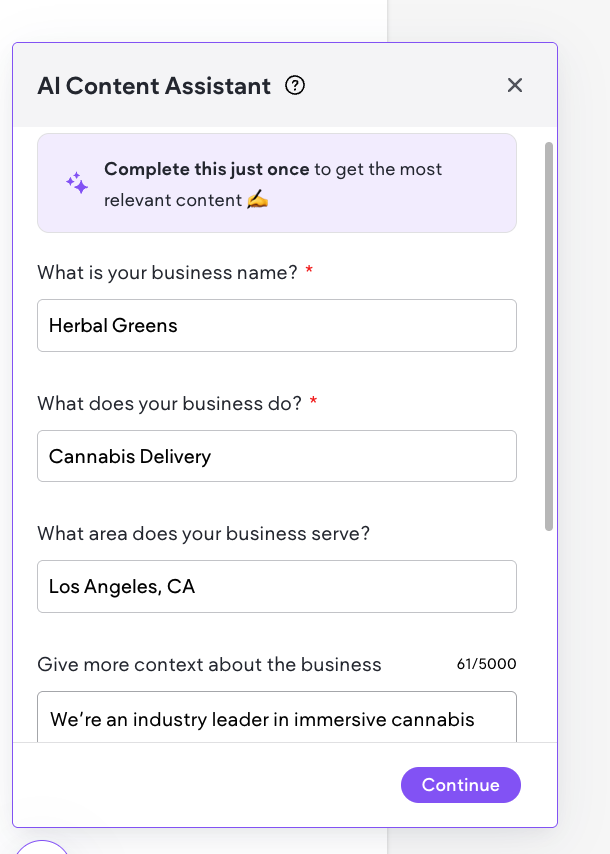
Click here to learn more about **[Page SEO](https://support.blaze.me/hc/en-us/articles/seo-single-page-management?hsLang=en#:~:text=the%20selected%20page.-,Page%20SEO,-Search%20engine%20optimization)**
### ✏️ Edit Text and Images on Your Website Pages
- Go to your **Homepage**, **About Us**, or other key pages.
- Click directly on any **textarea** to update your content with your store’s unique info—like who you are, what you offer, and how to contact you.
- To update **images**, click on any photo and select **"Replace"** to upload your own. Use real images of your team, storefront, or products to make the site feel authentic.
- **To maximize SEO**, add **Alt Text** to each image.
🚨 **NOTE:** Make sure the alt text accurately describes the image — incorrect alt text can harm your SEO instead of helping it.
**How to Add Alt Text Using AI (Video)**
### 📊 How to Add Google Analytics and Google Tag Manager IDs
1. In the left-side navigation, click on **SEO & Settings**.
2. Select **Google Tools** from the menu.
3. Enter your **Google Analytics Tracking ID** in the designated field.
4. Enter your **Google Tag Manager Container ID** in the corresponding field.
5. Save your changes and **publish** your site.
**💡PRO TIP:** Make sure your Google accounts are properly set up and you have the correct tracking IDs ready before adding them.
### 🔄 URL Redirects (If Needed)
If you’re switching from an old site to BLAZE Sites, make sure each old page has a matching new page to keep your SEO rankings.
If you want to remove any old pages, set up a URL redirect to send visitors from the old page to a relevant page on your new site.
**To add redirects:**
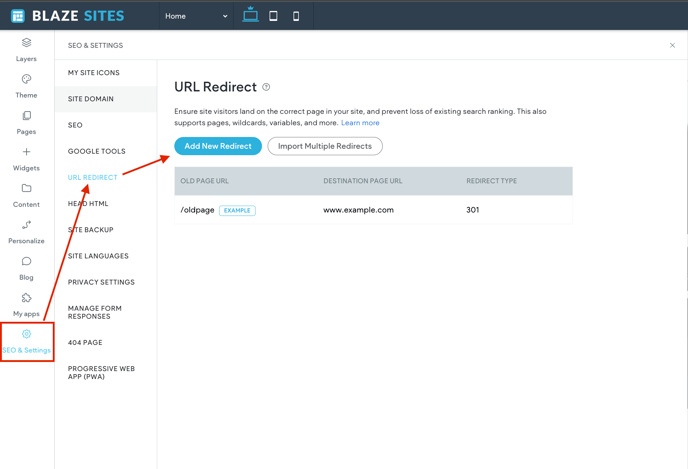
1. In the left panel, click **SEO & Settings**.
2. Click **URL Redirect**.
3. Click **Add new redirect** and enter the old and new URLs.
****
- [SEO: Key Concepts and Tools](https://help.blaze.me/can/home/ecom-blaze-sites-seo-key-concepts-and-tools?hsLang=en)
- [How to Manage Elements](https://help.blaze.me/can/home/ecom-blaze-sites-manage-elements-layers?hsLang=en)
- [BLAZE Widgets](https://support.blaze.me/hc/en-us/articles/ecom-blaze-sites-widgets?hsLang=en)
- [Backup Site](https://help.blaze.me/can/home/ecom-blaze-sites-backup-site?hsLang=en)
Still have a question? Check out our comprehensive **[Knowledge Base](https://help.blaze.me/can/home?hsLang=en)**
- [Getting started](https://help.blaze.me/can/home/getting-started?hsLang=en)
- [Dashboard](https://help.blaze.me/can/home/dashboard?hsLang=en#main-content)
- [General](https://help.blaze.me/can/home/dashboard?hsLang=en#general)
- [Settings](https://help.blaze.me/can/home/dashboard?hsLang=en#settings)
- [Products](https://help.blaze.me/can/home/dashboard?hsLang=en#products)
- [Discounts](https://help.blaze.me/can/home/dashboard?hsLang=en#discounts)
- [Inventory](https://help.blaze.me/can/home/dashboard?hsLang=en#inventory)
- [Customers](https://help.blaze.me/can/home/dashboard?hsLang=en#customers)
- [Employees](https://help.blaze.me/can/home/dashboard?hsLang=en#employees)
- [Sales](https://help.blaze.me/can/home/dashboard?hsLang=en#sales)
- [Purchase Orders](https://help.blaze.me/can/home/dashboard?hsLang=en#purchase-orders)
- [Reports](https://help.blaze.me/can/home/dashboard?hsLang=en#reports)
- [Compliance](https://help.blaze.me/can/home/dashboard?hsLang=en#compliance)
- [POS (Tablet)](https://help.blaze.me/can/home/pos-tablet?hsLang=en#main-content)
- [Getting Started](https://help.blaze.me/can/home/pos-tablet?hsLang=en#getting-started)
- [General](https://help.blaze.me/can/home/pos-tablet?hsLang=en#general)
- [Starting and Ending Shifts](https://help.blaze.me/can/home/pos-tablet?hsLang=en#starting-and-ending-shifts)
- [POS Register](https://help.blaze.me/can/home/pos-tablet?hsLang=en#pos-register)
- [POS (Browser)](https://help.blaze.me/can/home/pos-browser?hsLang=en#main-content)
- [General](https://help.blaze.me/can/home/pos-browser?hsLang=en#general)
- [Starting and Ending Shifts](https://help.blaze.me/can/home/pos-browser?hsLang=en#starting-and-ending-shifts)
- [POS Register](https://help.blaze.me/can/home/pos-browser?hsLang=en#pos-register)
- [BLAZE ECOM](https://help.blaze.me/can/home/blaze-ecom?hsLang=en#main-content)
- [General](https://help.blaze.me/can/home/blaze-ecom?hsLang=en#general)
- [ECOM Set-up](https://help.blaze.me/can/home/blaze-ecom?hsLang=en#ecom-set-up)
- [Customization](https://help.blaze.me/can/home/blaze-ecom?hsLang=en#customization)
- [ECOM Discounts](https://help.blaze.me/can/home/blaze-ecom?hsLang=en#ecom-discounts)
- [SEO](https://help.blaze.me/can/home/blaze-ecom?hsLang=en#seo)
- [BLAZEPAY](https://help.blaze.me/can/home/blazepay?hsLang=en#main-content)
- [Getting Started](https://help.blaze.me/can/home/blazepay?hsLang=en#getting-started)
- [General](https://help.blaze.me/can/home/blazepay?hsLang=en#general)
- [BLAZEPAY Merchant Portal](https://help.blaze.me/can/home/blazepay?hsLang=en#blazepay-merchant-portal)
- [Integrations](https://help.blaze.me/can/home/integrations?hsLang=en#main-content)
- [General](https://help.blaze.me/can/home/integrations?hsLang=en#general)
- [Payment Processing](https://help.blaze.me/can/home/integrations?hsLang=en#payment-processing)
- [E-Commerce](https://help.blaze.me/can/home/integrations?hsLang=en#e-commerce)
- [Data Analytics](https://help.blaze.me/can/home/integrations?hsLang=en#data-analytics)
- [Menu](https://help.blaze.me/can/home/integrations?hsLang=en#menu)
- [Other](https://help.blaze.me/can/home/integrations?hsLang=en#other)
- [Hardware](https://help.blaze.me/can/home/hardware?hsLang=en#main-content)
- [General](https://help.blaze.me/can/home/hardware?hsLang=en#general)
- [Scanners](https://help.blaze.me/can/home/hardware?hsLang=en#scanners)
- [Printers](https://help.blaze.me/can/home/hardware?hsLang=en#printers)
- [Payments](https://help.blaze.me/can/home/hardware?hsLang=en#payments)
- [BLAZE Sites](https://help.blaze.me/can/home/blaze-sites?hsLang=en#main-content)
- [General](https://help.blaze.me/can/home/blaze-sites?hsLang=en#general)
- [Customization](https://help.blaze.me/can/home/blaze-sites?hsLang=en#customization)
- [SEO](https://help.blaze.me/can/home/blaze-sites?hsLang=en#seo)
- [Widgets](https://help.blaze.me/can/home/blaze-sites?hsLang=en#widgets)
- [Migrations](https://help.blaze.me/can/home/migrations?hsLang=en)
- [Multi-Provincial Dashboard](https://help.blaze.me/can/home/multi-provincial-dashboard?hsLang=en)
- [Mobile Apps](https://help.blaze.me/can/home/mobile-apps?hsLang=en#main-content)
- [Getting Started](https://help.blaze.me/can/home/mobile-apps?hsLang=en#getting-started)
- [Customization](https://help.blaze.me/can/home/mobile-apps?hsLang=en#customization)
- [Growth](https://help.blaze.me/can/home/growth?hsLang=en#main-content)
- [Getting Started With Growth](https://help.blaze.me/can/home/growth?hsLang=en#getting-started-with-growth)
- [Growth Loyalty](https://help.blaze.me/can/home/growth?hsLang=en#growth-loyalty)
- [Growth Outreach](https://help.blaze.me/can/home/growth?hsLang=en#growth-outreach)
[](http://blaze.me)
BLAZE CAN Help Center
Copyright © 2025, BLAZE Solutions Inc.
```json
{
"@context" : "https://schema.org",
"@type" : "VideoObject",
"caption" : {
"@type" : "MediaObject",
"contentUrl" : "https://help.blaze.me/media-transcripts/190683197194/en.vtt",
"inLanguage" : "en",
"name" : "en Captions"
},
"contentUrl" : "https://stream.mux.com/dsx2JKmMxARb7RWXKqAz8XjJU2UI75mJZI2LFbG8rL8/capped-1080p.mp4",
"dateModified" : "2025-09-17T22:01:52.520Z",
"duration" : "PT3M10.357S",
"height" : 720,
"name" : "tour_the_editors_components (720p)",
"thumbnailUrl" : "https://6831432.fs1.hubspotusercontent-na1.net/hubfs/6831432/tour_the_editors_components%20(720p).mp4/medium.jpg",
"uploadDate" : "2025-05-27T18:19:47.791Z",
"width" : 1280
}
```
```json
{
"@context" : "https://schema.org",
"@type" : "VideoObject",
"caption" : {
"@type" : "MediaObject",
"contentUrl" : "https://help.blaze.me/media-transcripts/190681445000/en.vtt",
"inLanguage" : "en",
"name" : "en Captions"
},
"contentUrl" : "https://6831432.fs1.hubspotusercontent-na1.net/hubfs/6831432/generate_image_alt_text_automatically_with_ai%20(720p).mp4",
"dateModified" : "2025-09-17T21:56:42.880Z",
"duration" : "PT1M28.405S",
"height" : 720,
"name" : "generate_image_alt_text_automatically_with_ai (720p)",
"thumbnailUrl" : "https://6831432.fs1.hubspotusercontent-na1.net/hubfs/6831432/generate_image_alt_text_automatically_with_ai%20(720p).mp4/medium.jpg",
"uploadDate" : "2025-05-27T17:52:44.935Z",
"width" : 1280
}
```