![BLAZE-Logo-Blue.svg]](https://help.blaze.me/hubfs/BLAZE-Logo-Blue.svg)
How do I access BLAZE Accounts?
Once BLAZE Growth is added to your product stack, the Greenline Onboarding Team will reach out to get you started. Accounts are accessible from within Growth. To top up your account balance, select the "buy credits" button. You can also access Accounts from the Outreach tab within ECOM Mission Control, or finally from accounts.blaze.me
BLAZE Accounts Dashboard
The accounts dashboard includes the following sections: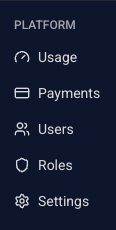
- Usage - Track credit consumption and manage top-ups.
- Payments - Payment methods and invoice history.
- Users - Team members with access to this BLAZE account.
- Roles - Custom roles and associated permissions.
- Settings - Account preferences and billing configuration.
Usage
This section tracks credit consumption and allows the purchase of additional SMS credits.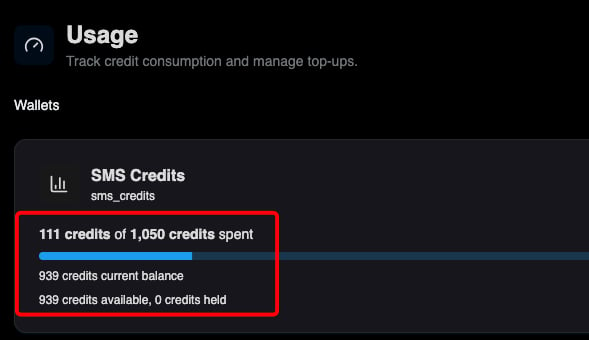
What happens when SMS Credits run out?
Growth displays a low-credit warning during campaign setup alongside an option to purchase additional credits. Attempting an immediate send without sufficient credits will block the dispatch until a top-up is completed.
Scheduling a campaign will not block the initial setup. A warning will appear, but scheduling remains available since credits are captured only at send time. If the account balance remains insufficient at the scheduled dispatch time, the campaign is placed on hold until credits are added. Campaigns that top up before send time will dispatch normally.
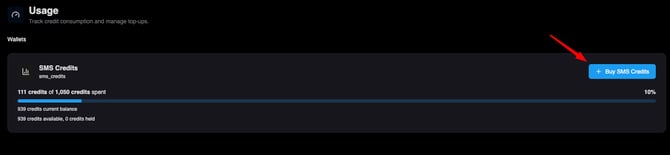
Buying SMS Credits
- Select "+ Buy SMS Credits"
- Select the desired purchase amount.
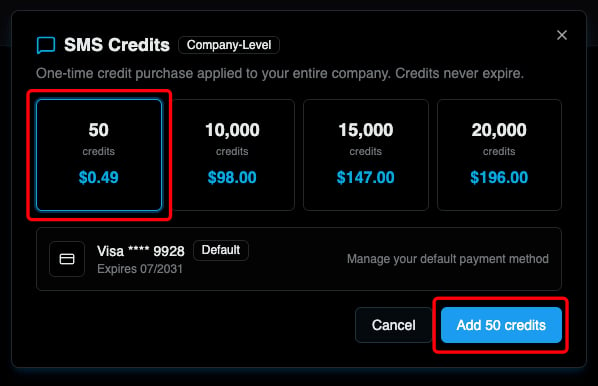
Why is no default payment method defined when purchasing credits?
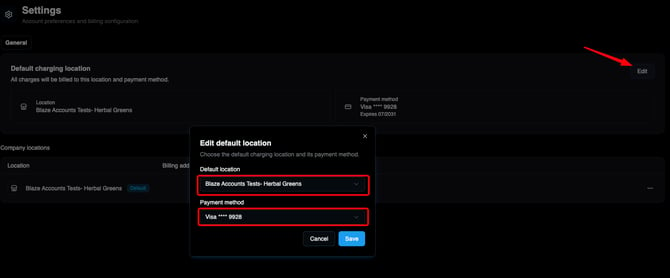
If no default payment method is set, a billing destination has not yet been assigned. Accounts does not automatically select a billing location for organizations with multiple locations. Navigate to Accounts > Settings to set a default location as the charge destination for all credit purchases. Once defined, credit purchases become available.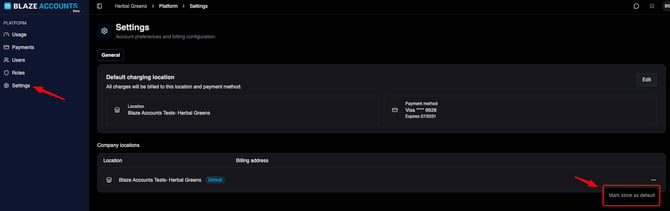
Payments
Payment methods and invoice history are located under this section.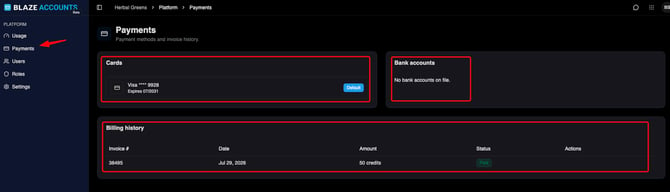
How to update payment cards or request invoice copies
Both functions are currently managed through Chargebee. Log in to either platform to update card details or download invoice documentation.
Users
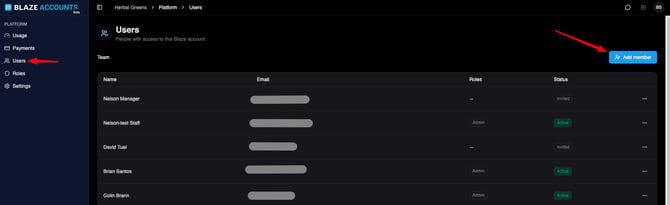
View and manage team members with access to this BLAZE account.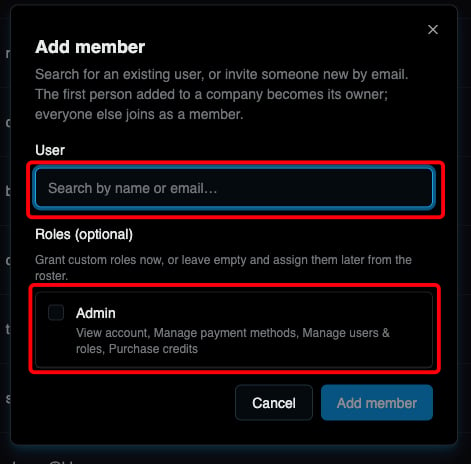
- Add a Member: Select "Add Member", enter the email address, and optionally select a role.
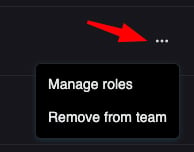
- Manage Members: To change a role or remove an account member, select the options menu (...) next to that user.
Roles
Create and manage custom roles and permissions within this section.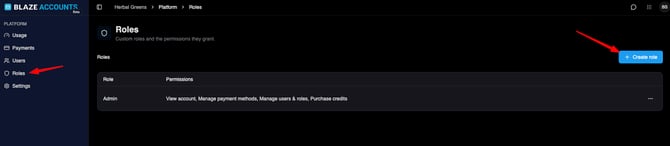
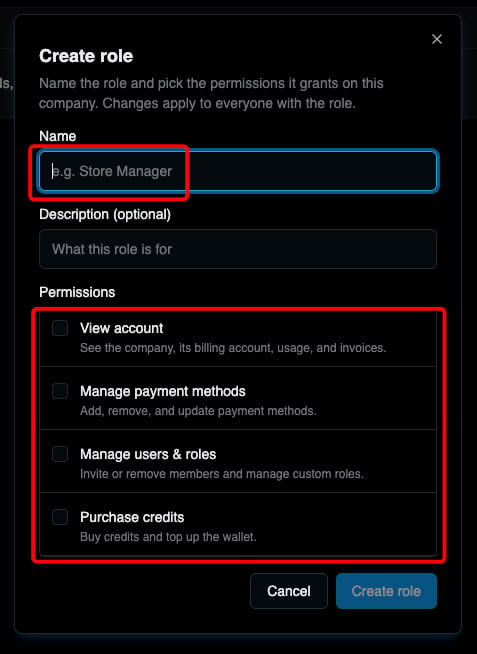
Role creation requires configuring the following fields:
- Name (Required)
- Description (Optional)
- Permissions (Required: View Account, Manage Payment Methods, Manage Users and Roles, and Purchase Credits)
Settings
Manage account preferences and billing configurations.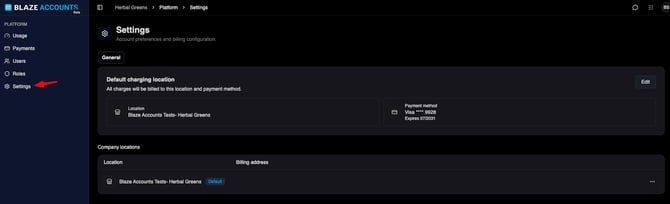
- General: Set the default charging location. All charges bill to this location and its associated payment method. Select Edit to modify the default location or payment details.
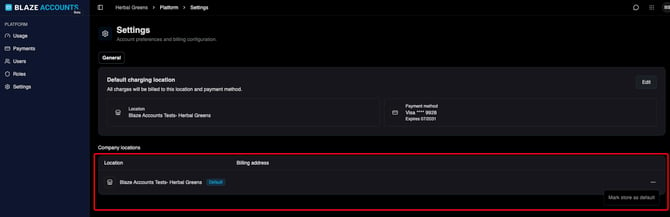
- Company Locations: Edit company locations via the options menu (...) to set a different primary location.
With your account permissions and billing settings configured at the company level, your team can seamlessly manage messaging credits, monitor overall usage, and maintain consistent user roles across all locations from a single dashboard.