![BLAZE-Logo-Blue.svg]](https://help.blaze.me/hubfs/BLAZE-Logo-Blue.svg)
A 10DLC form is required to enable SMS messaging. To submit your 10DLC form, please refer to this article.
How to send a campaign via SMS:
In your Growth Dashboard, navigate to the Campaigns section and under One-Time Campaigns select New Campaign.

From there, you will enter the campaign setup screen - you will need to enter a Campaign Name, Campaign Type (SMS in this case), selected audience, and store. Select Save to save your work for later or Continue to move on to the content building step.
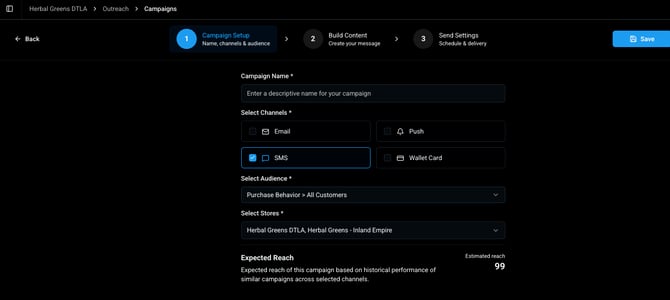
SMS Campaign Setup & Pre-configured Templates
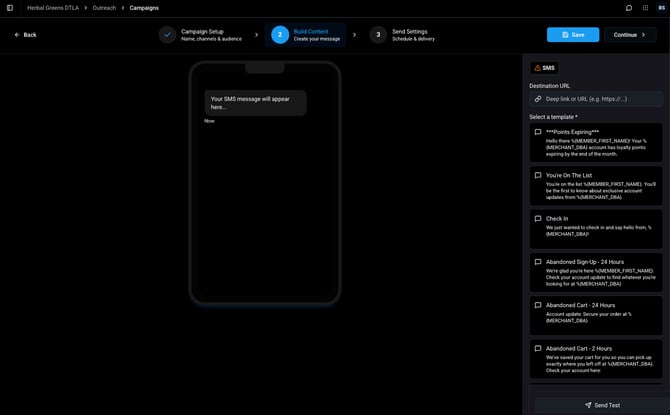
Pre-configured templates are intentionally restricted from editing to maintain strict compliance with SMS regulatory frameworks. Due to heavy carrier monitoring in the cannabis industry, non-compliant messaging can result in operator blacklisting. These system templates are pre-structured to prevent delivery disruptions and protect account status.
To launch a campaign using pre-configured options:
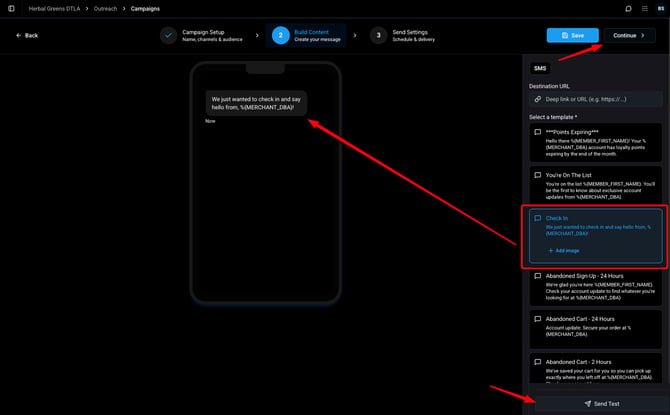
- Select a template from the list.
- Assign a destination URL to the message.
- Send a test message to verify formatting prior to launching the live send.
- Select Continue to proceed.
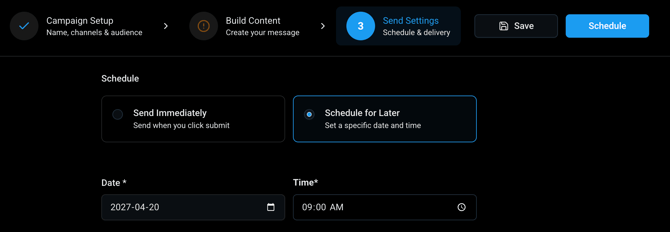
The Send Settings screen provides options to dispatch the message immediately, schedule it for a later date, or save it as a draft.
Custom Templates:
Creating custom messaging requires navigating to Templates and selecting Create Template. Custom submissions allow personalized copy using text and shortcode variables, subject to compliance review.
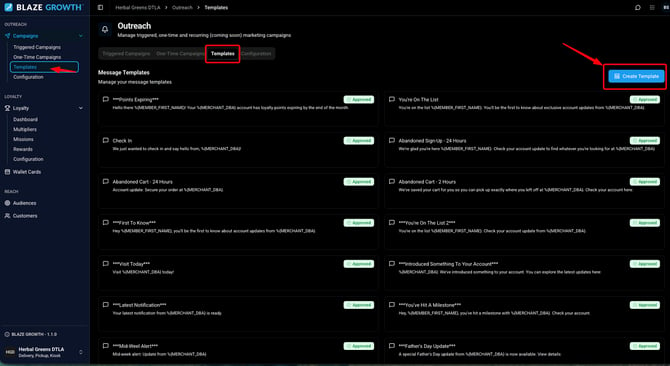
To submit a custom template:
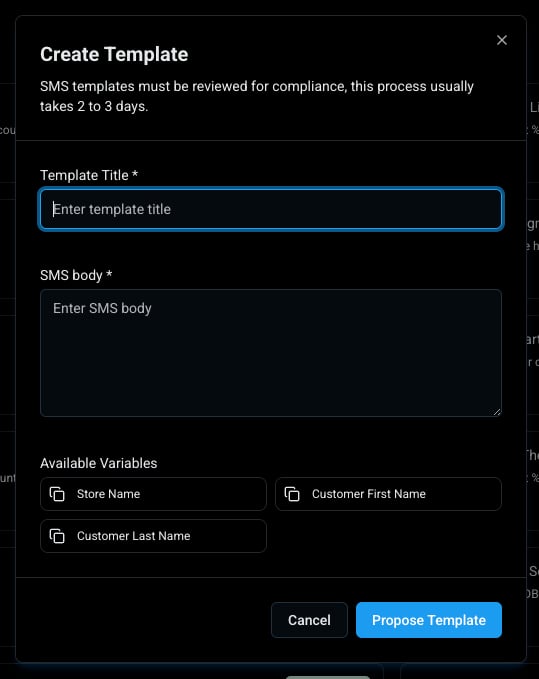
- Enter a Title and compose the SMS Body.
- Review compliance requirements in the BLAZE Growth | SMS Create New Template Best Practices guide before submission.
- Select Propose Template to submit the draft for review.
All custom submissions undergo a final compliance check by the BLAZE team to verify compliance with messaging guidelines. The review process typically takes 42 to 72 hours. Submitted templates and their current approval statuses are visible directly on the Templates screen.