![BLAZE-Logo-Blue.svg]](https://help.blaze.me/hubfs/BLAZE-Logo-Blue.svg)
While products share a core set of company-wide tags, merchandising strategy varies by region. Whether you're running a promo exclusive to Ontario or adding custom labels to a specific storefront, location-specific tags allow you to customize visibility without duplicating product listings.
On the dashboard, go to the Product List and scroll to the Tags tab.
You will see a table with two columns — Location and Tag — each applied tag will appear on in this section.
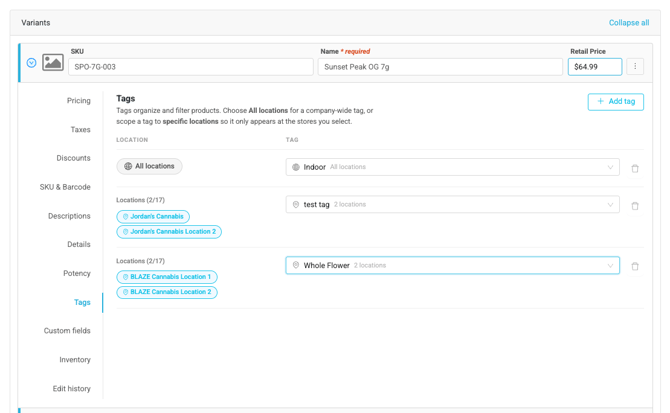
Adding a Tag
- On the Tags tab, click Add tag, an empty tag field will appear.
- Choose a tag from the Select tag dropdown — or type a new name and click Create Tag. New tags show a “(new)” marker until you save the product.
- By default the tag applies to All locations.

Setting a Tag's Location
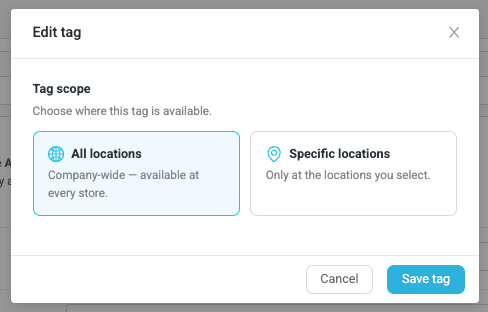
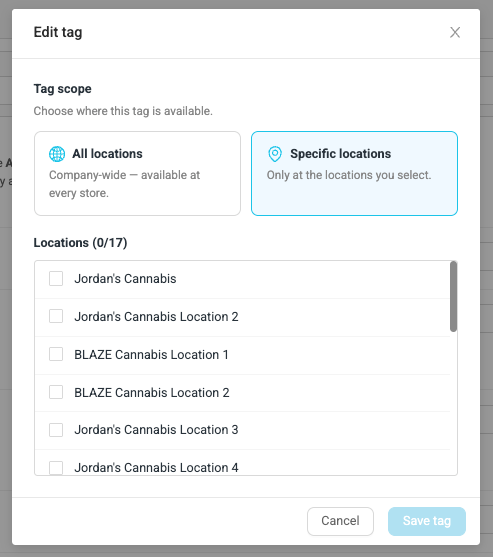
Clicking a row’s location button opens the Edit tag window. Under Tag scope, pick one of two options:
- All locations — company-wide; the tag is available at every store.
- Specific locations — only at the locations you select. A checkbox list of your locations appears; check the ones you want.
Click Save tag to apply.
If you chose Specific locations, at least one location must be checked before you can save. The row’s location button updates to show either “All locations” or a location count, i.e. “Locations (3/12)”.
-
Every tag row needs a name. If a row is left empty, you’ll see: “Tag name is required. Enter a name for each tag or remove the empty tag row before saving.”
- The same tag cannot be added to the same location twice — duplicates are blocked.
- Location-specific tags do not change the product’s default tags. Removing a location override never touches the tags other locations see.
- Tags are matched across your companies by name, so “Summer Sale” for example, will appear as a tag option across locations.
How Location Tags Appear at the Company Level
When a store manager opens the same product from a single company’s product list, the Tags tab shows their regular editable tags plus a read-only panel labeled “Managed by your organization” with a READ ONLY badge.
The Tags tab lists each location and the org-applied tag(s) associated with it, with the note: “When set, these tags are added to the product’s default tags at the specified location.” Locations not listed carry only the product’s default tags.
These org-managed tags can only be edited from the org product — that’s the single source of truth. The panel appears only when location tag overrides exist for that product.
FAQ - Frequently Asked Questions
|
Question |
Answer |
|
What does a location-specific tag do at the store? |
The store sees the product’s default tags plus any tags scoped to that location. Tags are additive — scoping a tag to one location doesn’t remove anything elsewhere. |
|
Can I create a brand-new tag while editing a product? |
Yes. Type the new name in the tag dropdown and choose (Create Tag). It’s created when you save the product. |
|
Why can’t a store manager edit a tag in the “Managed by your organization” panel? |
Org-applied tag overrides are read-only at the company level. Edit them from the org product. |
|
Why is Save tag disabled in the Edit tag window? |
You chose Specific locations but haven’t checked any location yet. Select at least one, or switch back to All locations. |
Need a hand? If something doesn’t look right or you’re not sure how your organization is set up, reach out to your BLAZE representative or contact support — we’re happy to help.