![BLAZE-Logo-Blue.svg]](https://help.blaze.me/hubfs/BLAZE-Logo-Blue.svg)
Finding the Sales Total in Greenline
The first step in reconciling your payments is to determine the total Payment Volume, or the total amount of money that processed through your BLAZEPAY payment terminal.
Log into the Greenline Dashboard:
- Go to Reports > Analytics
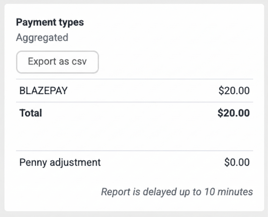
- On the Summary page, find the Payment Types card
- Make note of the BLAZEPAY total displayed - for this example, the payment volume is $20.00
If using BLAZEPAY as the payment processor on BLAZE ECOM or another e-commerce solution, payments will appear on the Payment Types as "Online".
You must ensure to combine the BLAZEPAY total with that Online total to determine the payment volume.
BLAZEPAY Payout Total
Now that we have the Payment Volume, in this example $20.00, we can reconcile that total within the BLAZEPAY Merchant Portal.
Log into the BLAZEPAY Merchant Portal
- Go to Finance > Payouts
- Set the desired date range
- The Payouts screen will show you the Volume (Payment Volume) and the Payout total
- The Volume should match the Sales Total from the Greenline Payment Types report
- The Payout total is the amount that will be deposited to your bank. In this example, the total payout is $15.00
.png?width=670&height=299&name=Gemini_Generated_Image_udcd9yudcd9yudcd%20(1).png)
(Volume) - (Transaction Fees) = Payout Total
If the Volume is $20.00 and the Payout is $15.00, we can assume the Processing Fees is $5.00.
Reviewing the Account Activity will confirm the assumed Processing Fee.
Account Activity
Account Activity allows you to review individual payments, its processing fee, along with other transactions on the merchant account such as refunds, refund fees and monthly administrative fees.
Exporting your Account Activity for a specific date range is an effective way to reconcile your Greenline sales with your bank deposits/payouts. This process allows you to confirm your transaction totals with high accuracy.
On your Merchant Portal, go to:
- Finance > Account Activity
- Set the desired date range
- Click the Export to CSV button in the top right corner
Open the CSV in Microsoft Excel, or your preferred spreadsheet application.
The most relevant columns for reconciliation purposes:
- Column L - Amount
- Column M - Category
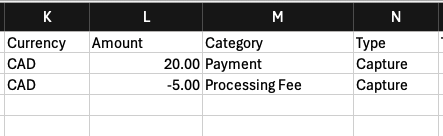
The SUM of Column L - Amount, should match the total deposit to your bank, or the Payout explained above.
In the example above: $20.00 (Payment) - $5.00 (Processing Fee) = $15.00
Sorting Column M - Category, will allow you to group each transaction category for review.
Statements
On the BLAZEPAY Merchant Portal, you have access to monthly statements that show:
- Volume by Card Type
- Bank Payouts
- Recurring Fees
- Terminal Fees
Each statement breaks down Payment Volume, Refunds, Fees and provides an overall value for Total Deposits for the given month.
These statements will be helpful in reconciling the Greenline sales total with your BLAZEPAY payouts.
To view your statements, log into the merchant portal and go to Finance > Statements