![BLAZE-Logo-Blue.svg]](https://help.blaze.me/hubfs/BLAZE-Logo-Blue.svg)
What are banners and location groups?
Your locations are organized in a simple hierarchy. From the top down:
- Organization — the umbrella that holds your whole business.
- Company — a business entity within your organization.
- Banner — a brand within your organization. For example, if you run both “Herbal Greens” and “BLAZE Cannabis” each is its own banner.
- Location Group — a set of stores within a banner (for example, a region or tier). Every group contains stores from a single province.
- Location — an individual store.
A Banner is one of your brands, and a Location Group is a set of stores within that brand. Grouping your locations this way makes them far easier to manage together.
A store that hasn’t been placed under a banner appears in the Ungrouped section. A store can also sit under a banner without yet belonging to a group — that’s perfectly normal while you’re setting things up.
The ONE Rule to Remember: Groups are Province-specific
A location group can only contain stores from the same province. For example, you can’t combine a British Columbia store and an Ontario store in the same group.
This keeps your reporting accurate by preventing tax and time-zone mismatches when sales are totaled together.
What this means as you work:
- When you assign a store to a banner, the groups you can choose from are automatically filtered to that store’s province. If no group matches, simply create one for that province.
- If you change a store’s province, it is automatically removed from any group it was in, because the province no longer matches. You will always see a warning first.
Before You Start
- Your organization and its companies are already set up. (If they aren’t, contact your Greenline representative — they’ll get this in place for you.)
- Each store’s province is set correctly, since province determines group eligibility.
Finding the Organization Locations view
Go to Settings > Locations.
For an organization, you’ll see the Organization Locations view with options to add locations and banners. Your banners are listed at the top. Expand a banner to see its groups and expand a group to see the stores inside it. Ungrouped stores appear at the bottom.
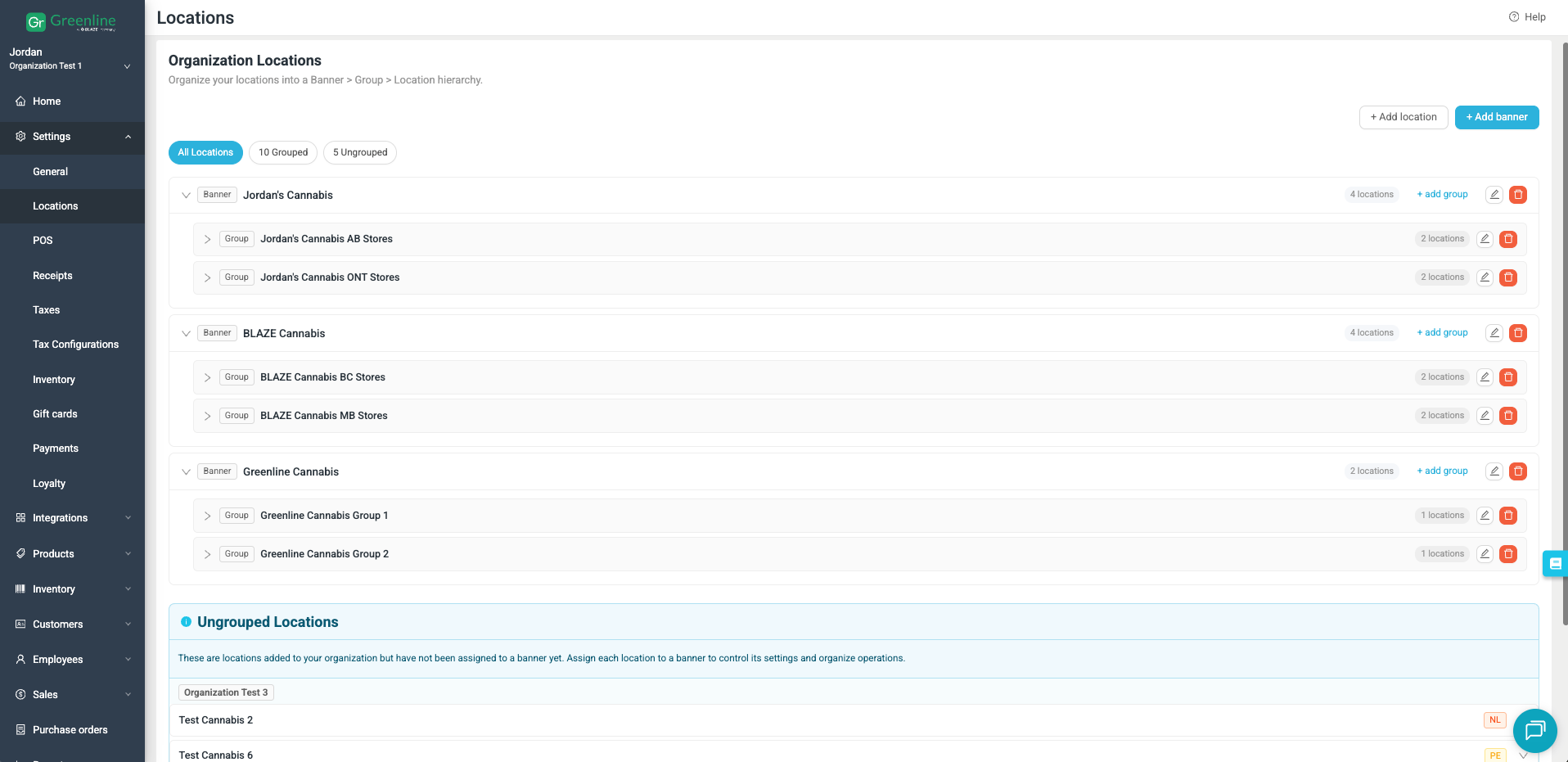
Creating a Banner and Adding a Store - Step-by-step
1. Create a Banner
- In the Organization Locations view, click Add Banner.
- Enter a banner name (for example, “Greenline Cannabis”). The Create button stays inactive until you type a name.
- Click Create. Your new banner appears in the list, ready for stores and groups.
2. Move a Store into a Banner
- Find the store in the Ungrouped section and open it.
- Select the banner you want to add the ungrouped store to.
- Click Save. The store leaves Ungrouped and now sits under that banner (not yet in a group).
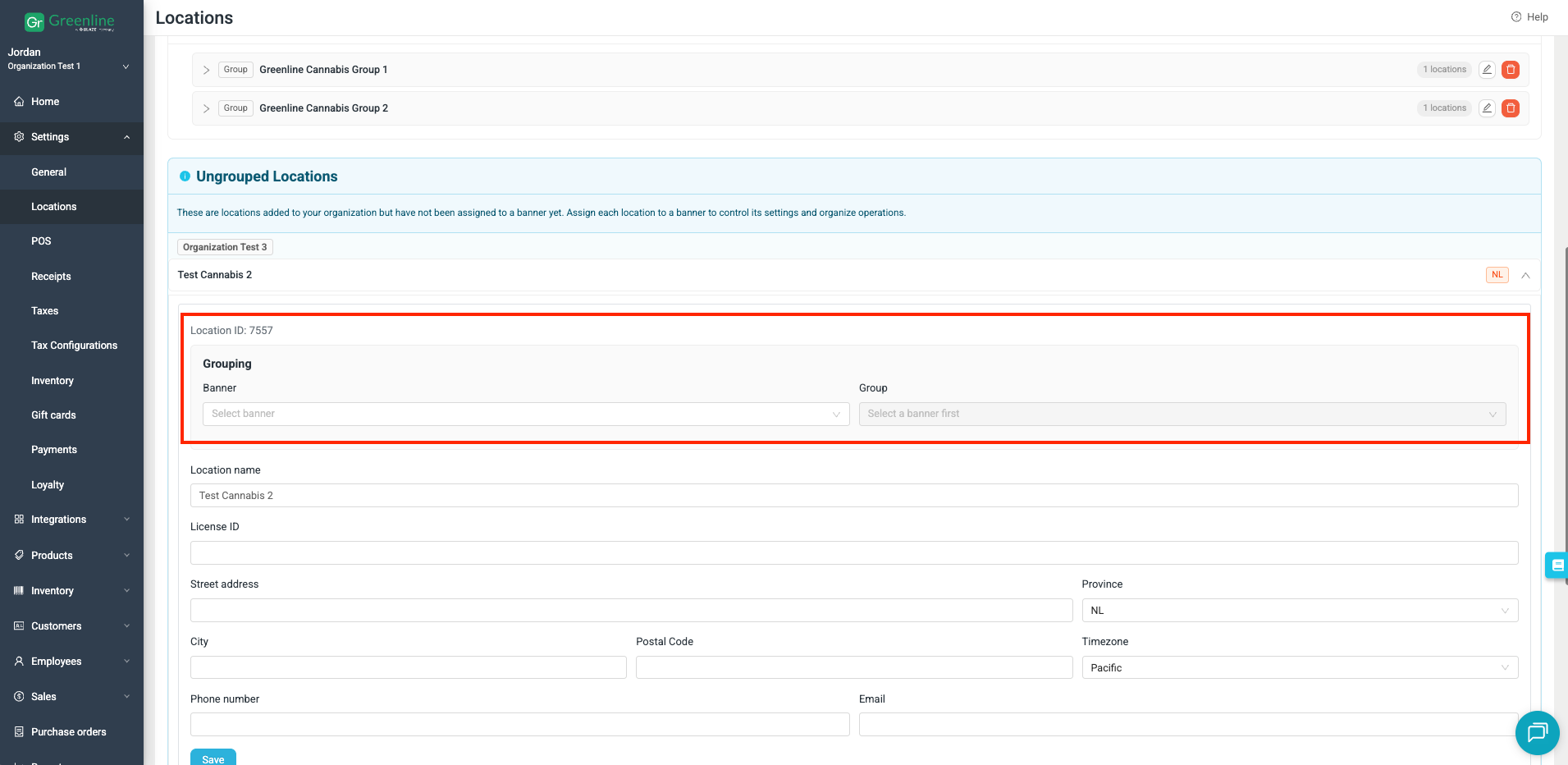
3. Create a Group Inside a Banner
- Under the banner, click Add Group.
- Enter a group name (for example, “Greenline Cannabis Group 1”). A name is required.
- Click Create Group. The banner expands automatically so you can immediately see the new group.
4. Assign a Store to a Group
- Open the store and select its banner.
- Selecting the banner reveals the groups you can choose from. Only groups that match the store’s province appear. If none appear, create a group for that province first.
- A province is chosen by the first location added to a group.
- Choose the group, then click Save. The store now sits inside that group.
Good to know: a store belongs to exactly one group per banner. Assigning it to a new group simply moves it out of the old one — it is never duplicated.
5. Rename a Banner or Group
Open the banner or group, edit the name and save. You can rename freely, but a blank name isn’t allowed — you’ll see a “Name is required” message.
6. Discard Changes While Editing a Store
If you’ve changed a store’s province or group and want to back out, use the Discard (Cancel) button in the edit row. It clears your unsaved changes and restores the original details. It’s best to use Discard rather than just closing the row, so nothing is left half-changed.
Deleting Banners and Groups
Banners and groups each have a trash icon next to their Edit control. Deleting is permanent, so you’ll always be asked to confirm first.
Your stores are never deleted — they simply lose their banner or group assignment.
|
When you delete a… |
What happens |
Where your stores go |
|---|---|---|
|
Banner |
The banner and all of its groups are removed. |
Its stores move to Ungrouped. |
|
Group |
Only that group is removed. |
Its stores move up under the banner. |
Each confirmation window tells you exactly what will happen before you confirm — including how many stores will be moved and offers a red Delete button alongside Cancel.
Once done, you will see a confirmation message and the banner or group is removed from your filters everywhere. If a banner has many stores, give it a few seconds to finish reorganizing.
Changing a Store’s Province
Because groups are province-specific, changing a store’s province affects its group membership:
- If the store belongs to a group, you’ll see a warning that changing the province will remove it from those groups. You can acknowledge it and continue — you won’t be blocked. After you save, the store is removed from that group.
- If the store isn’t in any group, no warning appears and the province simply updates.
- Setting the province to None also removes the store from its group, since a province is required for group membership.
- Editing other details (address, phone, hours) never triggers this warning.
FAQ - Frequently Asked Questions
|
Question |
Answer |
|---|---|
|
No groups appear when I try to assign a store. |
No group matches that store’s province. Check that the store’s province is set, then create a group for it. |
|
My store won’t save into a group. |
The store’s province probably doesn’t match the group, or no group was selected. Confirm the province and choose a valid group. Use Discard to start over. |
|
A store disappeared from its group. |
Its province was changed or set to None. Province changes remove a store from province-specific groups. |
|
Can a store be in more than one group? |
No — a store belongs to one group per banner. Moving it to a new group removes it from the old one. |
|
Will my banner and group setup be saved? |
Yes. Names and assignments are saved and remain in place when you refresh or return later. |
Need a hand? If anything doesn’t look right or you’re not sure how your organization is set up, reach out to your Greenline representative or contact support — we’re happy to help!