---
title: POS (Browser) | Start a Shift and Employee Login
description: Learn how to start shifts and help employees login each shift. Start all your shift correctly at the beginning of each business day and help your employees log into the POS device so they can track th
---
[Skip to content](https://help.blaze.me/can/home/how-do-i-start-a-shift#main-content)
[![BLAZE-Logo-Blue.svg\]](https://help.blaze.me/hubfs/BLAZE-Logo-Blue.svg)](https://help.blaze.me/can/home?hsLang=en)
- [BLAZE CAN Knowledge Base](https://help.blaze.me/can/home)
Open main navigation
Close main navigation
- [BLAZE CAN Knowledge Base](https://help.blaze.me/can/home)
Welcome to the Blaze Canada Knowledge Base! Find helpful reference by searching here...
- There are no suggestions because the search field is empty.
1. [BLAZE CAN Knowledge Base](https://help.blaze.me/can/home?hsLang=en)
2. [POS (Browser)](https://help.blaze.me/can/home/pos-browser?hsLang=en)
3. [Starting and Ending Shifts](https://help.blaze.me/can/home/pos-browser?hsLang=en#starting-and-ending-shifts)
# POS (Browser) | Start a Shift and Employee Login
## Learn how to start shifts and help employees login each shift.
Start all your shift correctly at the beginning of each business day and help your employees log into the POS device so they can track their sales during a shift.
**If you are using Tablet POS [click here](https://help.blaze.me/can/home/how-do-i-start-a-shift-1?hsLang=en)**
---
### How Do I Start a Shift?
Enter in a starting cash float value greater than zero along with your unique employee passcode. This passcode should be set up in the dashboard or back-end.
.png?width=688&height=312&name=image%20(100).png)
Once the float value and passcode have been entered, you can click on the “Start Shift” button. This will then take you to your Register page, where you can start taking sales orders.
---
### Employee Login
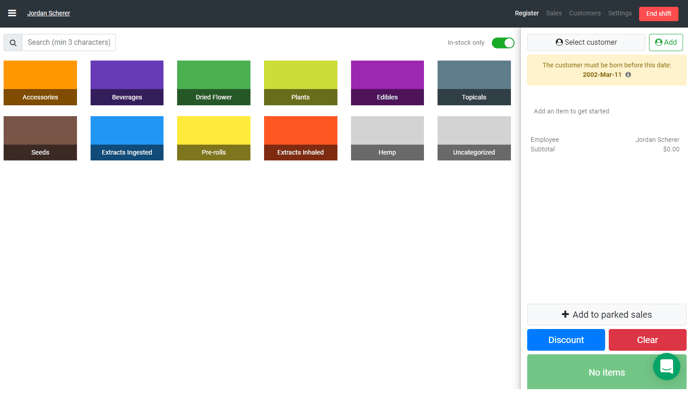
The employee, who is currently logged in, will see their name appear at the top of left corner of the Register page. The POS will track your shift sales and activities while logged into the POS.
When employees are making sales, ensure that the employee processing the sale has their name displayed on the Register page. This will correctly track and document which sales are being made by specific employees.
[](https://static.hsstatic.net/BlogImporterAssetsUI/ex/missing-image.png)
### How can multiple employees login to the same shift?
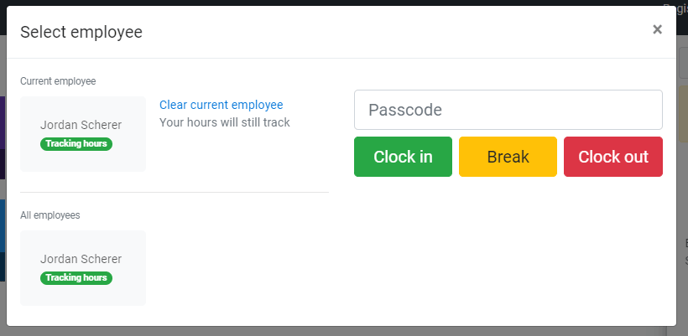
At the beginning of a shift, each employee will need to login in. On the Register page, click on the displayed employee's name. A pop up will appear showing all the logged in employees who are tracking sales for the current shift.
Employees can enter in their passcode and click on "Clock in" to begin tracking their shift sales. When employees take their breaks or clock out, they can enter in their employee passcode and click on the “Break” or “Clock out” buttons. To resume tracking sales, you will need to re-enter your passcode and click on “Clock in”.
### How can we switch employee profiles?
On the Register page, click on the displayed employee's name. A pop up will appear showing all the logged in employees who are tracking sales for the current shift. If you are logged in, enter in your passcode to switch employee profiles and your name will appear on the Register page.
- [Getting started](https://help.blaze.me/can/home/getting-started?hsLang=en)
- [Dashboard](https://help.blaze.me/can/home/dashboard?hsLang=en#main-content)
- [General](https://help.blaze.me/can/home/dashboard?hsLang=en#general)
- [Settings](https://help.blaze.me/can/home/dashboard?hsLang=en#settings)
- [Products](https://help.blaze.me/can/home/dashboard?hsLang=en#products)
- [Discounts](https://help.blaze.me/can/home/dashboard?hsLang=en#discounts)
- [Inventory](https://help.blaze.me/can/home/dashboard?hsLang=en#inventory)
- [Customers](https://help.blaze.me/can/home/dashboard?hsLang=en#customers)
- [Employees](https://help.blaze.me/can/home/dashboard?hsLang=en#employees)
- [Sales](https://help.blaze.me/can/home/dashboard?hsLang=en#sales)
- [Purchase Orders](https://help.blaze.me/can/home/dashboard?hsLang=en#purchase-orders)
- [Reports](https://help.blaze.me/can/home/dashboard?hsLang=en#reports)
- [Compliance](https://help.blaze.me/can/home/dashboard?hsLang=en#compliance)
- [POS (Tablet)](https://help.blaze.me/can/home/pos-tablet?hsLang=en#main-content)
- [Getting Started](https://help.blaze.me/can/home/pos-tablet?hsLang=en#getting-started)
- [General](https://help.blaze.me/can/home/pos-tablet?hsLang=en#general)
- [Starting and Ending Shifts](https://help.blaze.me/can/home/pos-tablet?hsLang=en#starting-and-ending-shifts)
- [POS Register](https://help.blaze.me/can/home/pos-tablet?hsLang=en#pos-register)
- [POS (Browser)](https://help.blaze.me/can/home/pos-browser?hsLang=en#main-content)
- [General](https://help.blaze.me/can/home/pos-browser?hsLang=en#general)
- [Starting and Ending Shifts](https://help.blaze.me/can/home/pos-browser?hsLang=en#starting-and-ending-shifts)
- [POS Register](https://help.blaze.me/can/home/pos-browser?hsLang=en#pos-register)
- [BLAZE ECOM](https://help.blaze.me/can/home/blaze-ecom?hsLang=en#main-content)
- [General](https://help.blaze.me/can/home/blaze-ecom?hsLang=en#general)
- [ECOM Set-up](https://help.blaze.me/can/home/blaze-ecom?hsLang=en#ecom-set-up)
- [Customization](https://help.blaze.me/can/home/blaze-ecom?hsLang=en#customization)
- [ECOM Discounts](https://help.blaze.me/can/home/blaze-ecom?hsLang=en#ecom-discounts)
- [SEO](https://help.blaze.me/can/home/blaze-ecom?hsLang=en#seo)
- [BLAZEPAY](https://help.blaze.me/can/home/blazepay?hsLang=en#main-content)
- [Getting Started](https://help.blaze.me/can/home/blazepay?hsLang=en#getting-started)
- [General](https://help.blaze.me/can/home/blazepay?hsLang=en#general)
- [BLAZEPAY Merchant Portal](https://help.blaze.me/can/home/blazepay?hsLang=en#blazepay-merchant-portal)
- [Integrations](https://help.blaze.me/can/home/integrations?hsLang=en#main-content)
- [General](https://help.blaze.me/can/home/integrations?hsLang=en#general)
- [Payment Processing](https://help.blaze.me/can/home/integrations?hsLang=en#payment-processing)
- [E-Commerce](https://help.blaze.me/can/home/integrations?hsLang=en#e-commerce)
- [Data Analytics](https://help.blaze.me/can/home/integrations?hsLang=en#data-analytics)
- [Menu](https://help.blaze.me/can/home/integrations?hsLang=en#menu)
- [Other](https://help.blaze.me/can/home/integrations?hsLang=en#other)
- [Hardware](https://help.blaze.me/can/home/hardware?hsLang=en#main-content)
- [General](https://help.blaze.me/can/home/hardware?hsLang=en#general)
- [Scanners](https://help.blaze.me/can/home/hardware?hsLang=en#scanners)
- [Printers](https://help.blaze.me/can/home/hardware?hsLang=en#printers)
- [Payments](https://help.blaze.me/can/home/hardware?hsLang=en#payments)
- [BLAZE Sites](https://help.blaze.me/can/home/blaze-sites?hsLang=en#main-content)
- [General](https://help.blaze.me/can/home/blaze-sites?hsLang=en#general)
- [Customization](https://help.blaze.me/can/home/blaze-sites?hsLang=en#customization)
- [SEO](https://help.blaze.me/can/home/blaze-sites?hsLang=en#seo)
- [Widgets](https://help.blaze.me/can/home/blaze-sites?hsLang=en#widgets)
- [Migrations](https://help.blaze.me/can/home/migrations?hsLang=en)
- [Multi-Provincial Dashboard](https://help.blaze.me/can/home/multi-provincial-dashboard?hsLang=en)
- [Mobile Apps](https://help.blaze.me/can/home/mobile-apps?hsLang=en#main-content)
- [Getting Started](https://help.blaze.me/can/home/mobile-apps?hsLang=en#getting-started)
- [Customization](https://help.blaze.me/can/home/mobile-apps?hsLang=en#customization)
- [Growth](https://help.blaze.me/can/home/growth?hsLang=en#main-content)
- [Getting Started With Growth](https://help.blaze.me/can/home/growth?hsLang=en#getting-started-with-growth)
- [Growth Loyalty](https://help.blaze.me/can/home/growth?hsLang=en#growth-loyalty)
- [Growth Outreach](https://help.blaze.me/can/home/growth?hsLang=en#growth-outreach)
[](http://blaze.me)
BLAZE CAN Help Center
Copyright © 2025, BLAZE Solutions Inc.